Resize Photo to 2×2 Inches
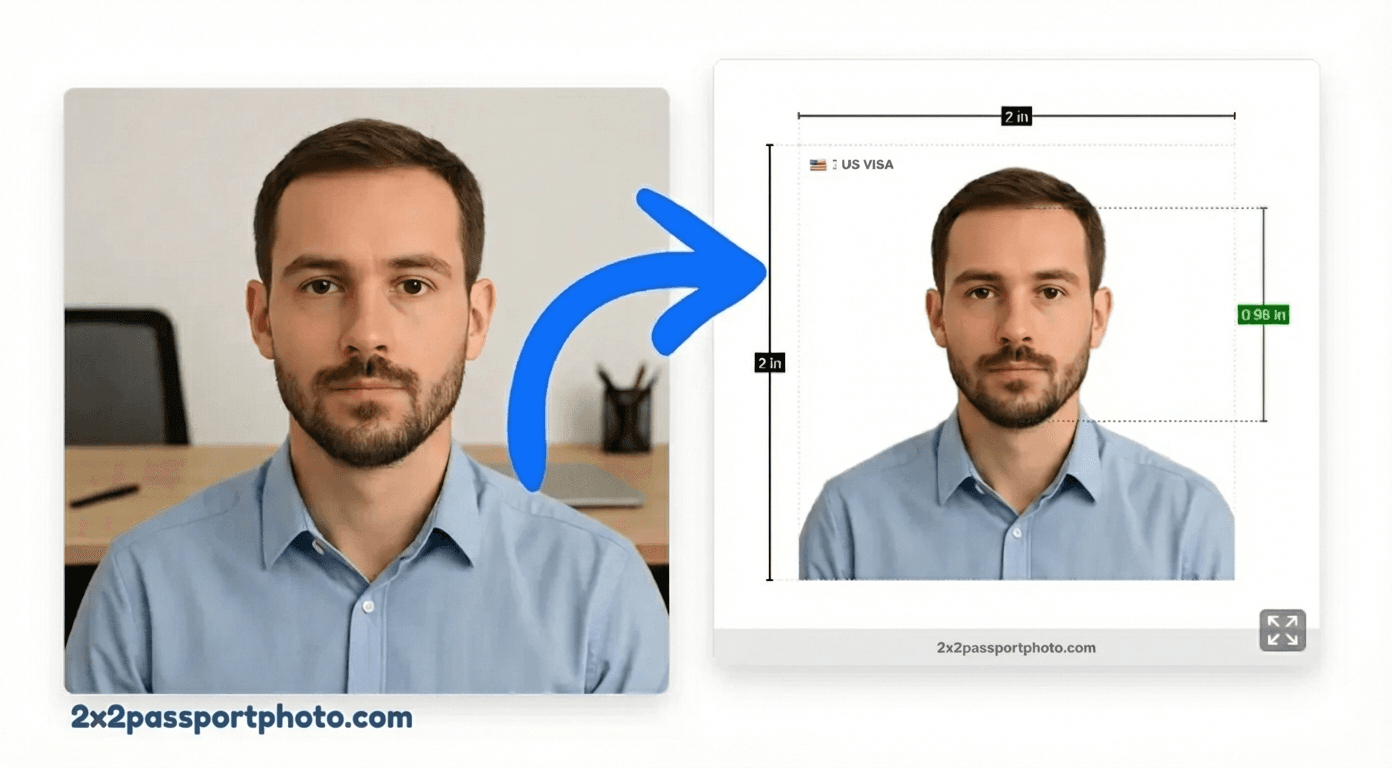
Resize photos to exactly 2×2 inches with correct DPI and pixel dimensions. Create compliant passport photos that print perfectly.
Need to resize a photo to 2×2 inches for your passport? Understanding pixel dimensions and DPI is crucial for creating a compliant photo that prints correctly. Our tool handles all the technical details for you.
2×2 Size in Inches, mm, and Pixels
A 2×2 passport photo has specific dimensions depending on how you measure it:
| Measurement | Dimensions | Use Case |
|---|---|---|
| Inches | 2×2 inches | Physical size |
| Millimeters | 51×51 mm | International standard |
| Pixels (300 DPI) | 600×600 pixels | Print quality (recommended) |
| Pixels (150 DPI) | 300×300 pixels | Screen display (not for printing) |
Warning
Create Your 2×2 Passport Photo
Upload your photo and we'll automatically crop it to 2×2 inches with proper alignment.
Upload Your Photo
Upload a photo from your device. We'll help you crop it, remove the background, and format it for your passport application.
Start Creating PhotoFree to try. HD download is a one-time $9.99.
Best DPI for Printing
DPI (dots per inch) determines how sharp your printed photo will be:
- 300 DPI: Professional print quality, recommended for passport photos. Results in sharp, clear prints that meet official requirements.
- 150 DPI: Lower quality, may appear pixelated when printed. Not recommended for official documents.
- 72 DPI: Screen resolution only, not suitable for printing.
Tip
Avoid Stretching: Keep Proportions
When resizing to 2×2, it's important to maintain the square aspect ratio. Here's how to avoid stretching:
- Crop first: If your photo is rectangular, crop it to square before resizing
- Maintain aspect ratio: Always resize proportionally (same width and height)
- Use proper tools: Our tool automatically handles cropping and resizing while maintaining quality
Common Mistakes:
- Forcing a rectangular photo into a square without cropping (causes stretching)
- Resizing without maintaining aspect ratio (distorts the image)
- Using low-resolution source images (results in pixelated output)
Resize to 2×2 FAQs
What are the pixel dimensions for a 2×2 passport photo?
At 300 DPI (the standard for print quality), a 2×2 inch photo equals 600×600 pixels. At 150 DPI, it's 300×300 pixels, but 300 DPI is recommended for passport photos to ensure sharp, clear prints.
What DPI should I use for passport photos?
300 DPI is the standard and recommended DPI for passport photos. This ensures your photo will be sharp and clear when printed. Lower DPI (like 150) may result in pixelated or blurry prints that could be rejected.
How do I resize a photo to 2×2 inches without stretching?
To avoid stretching, you need to crop the photo to a square aspect ratio first, then resize. Our tool automatically handles this—it crops to square, then resizes to exactly 2×2 inches while maintaining quality.
Can I resize a photo to 2×2 online?
Yes! Our online tool resizes photos to exactly 2×2 inches (600×600 pixels at 300 DPI). It also handles cropping to square format and background fixing to ensure compliance.
Will resizing reduce photo quality?
If you resize up (make larger), quality may decrease. If you resize down (make smaller), quality is usually maintained. Our tool uses high-quality algorithms to minimize quality loss. Starting with a high-resolution photo (1200×1200 or larger) gives best results.
What's the difference between 300 DPI and 150 DPI?
DPI (dots per inch) determines print quality. 300 DPI means 300 pixels per inch, resulting in sharp, professional prints. 150 DPI means 150 pixels per inch, which may appear pixelated when printed. For passport photos, always use 300 DPI.
How do I check the DPI of my photo?
You can check DPI in photo editing software or image properties. Our tool automatically sets the correct DPI (300) when you download. The pixel dimensions divided by the DPI equals the physical size (e.g., 600px ÷ 300 DPI = 2 inches).
Related Guides & Tools
Passport Photo Editor
Full-featured online photo editor with AI
2×2 Passport Photo Maker
Complete guide to creating 2×2 passport photos
Crop Photo to 2×2
Learn how to crop photos to the exact size
Print 2×2 Passport Photos
How to print your resized photos
2×2 Photo Template
Downloadable print-ready template
US Passport Photo Requirements
Detailed size and quality requirements